
The payments table
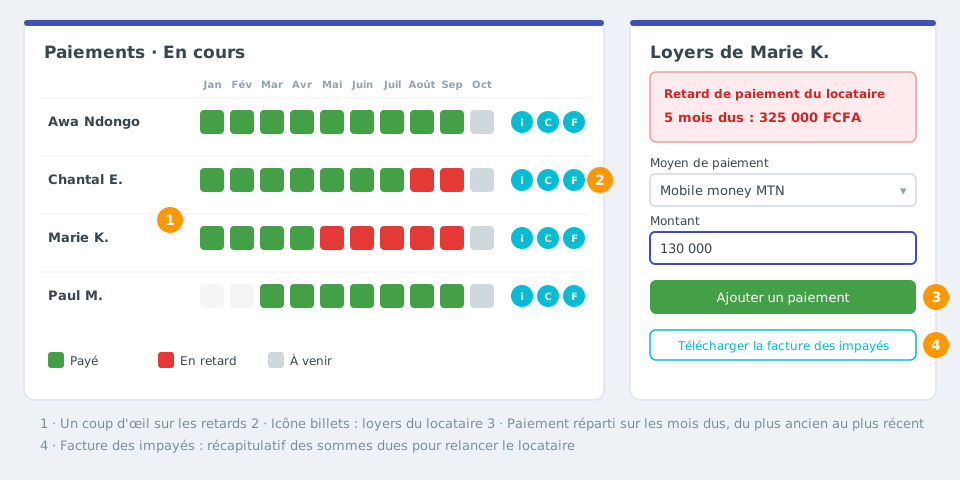
Open Rentals > Payments. Each row is a contract and each column a month: the colour of the cell shows whether the month is paid, late or upcoming. Filter on current or ended contracts.
An All / Long term / Seasonal selector, saved for your account, chooses the contracts shown; seasonal stays are listed one per line with their payment badge.
Record a payment
- In Rentals > Payments, click the banknote icon on the tenant's row to show their rent.
- Choose the payment method: cash, bank card, cheque, bank transfer, PayPal, other transfer, MTN or Orange mobile money.
- Enter the amount received, then click Add a payment.
- Check the payment date, add a comment (transaction reference...) and confirm.
Spot late payments
- In Rentals > Units, the tenant's button is green if up to date and red if late.
- On the unit page, the yearly chart shows for each month the expected amount, the amount paid, the occupancy rate and the list of late tenants.
- The tenant page shows the Tenant late payment box.
Chase and recover
From the tenant page or their rent page:
- Download the invoice: invoice for the chosen month;
- Download the arrears invoice: summary of all amounts due, to hand over or send to the tenant as a reminder.
Debt recovery best practice
Chase from the first days of delay with the arrears invoice, keep a record of every exchange (payment comment), and inform the guarantor if the delay persists. Regular follow-up prevents debts from piling up.
Seasonal stay payments
Record the payment when creating the stay, then update the amount received and the security deposit from the Edit booking window of the unit. See Seasonal rentals.